Oct 10, 2016

Thank you for the great pictures for Facebook, Twitter, and the website! Please keep them coming! And, if you are tweeting in your classroom, the addition of the Park Rapids hashtag, #ParkRapidsISD will help bring additional viewers to your tweets. Please include us! Thank you!

My Upcoming Schedule:

  • Monday, Oct 10: Park Rapids, 7:30AM – 5:30PM
  • Tuesday, Oct 11: Park Rapids, 7:30AM – 2:30PM/Nevis, 3:00 – 4:30PM
  • Wednesday, Oct 12: Park Rapids, 7:30AM – 6:00PM
  • Thursday, Oct 13: Park Rapids, 7:30AM – 12:30PM

Please feel free to contact me at any time via my cell phone (320-241-6150), my home email (lconzemius@gmail.com) or my Park Rapids email (lconzemius@parkrapids.k12.mn.us) .

Scheduled Classes:

There is a two-hour technology class scheduled Monday in Park Rapids from 3:30 – 5:30 in the Century Elementary computer lab on the Seesaw digital portfolio tool. Here’s the full description:

Monday, Oct 10

3:30 – 5:30 PM

Seesaw Student Portfolios

Seesaw allows students and teachers to easily post items into a student portfolio, which can also be shared with families. Children as young as preschool can learn how to scan a QR code to add an image or document, and teachers have full control of everything posted. Seesaw is a powerful tool, yet is easy to use…and free!

I realize it is a busy time with conferences this week. Please let me know if you are planning to attend. If no one is we will reschedule this one. It’s an awesome program!

Google Tip:

Want to share an article with your students, but aren’t happy with all of the advertising around the edges? This is where the Google Chrome browser can really come in handy. Head to the GoogleChrome Web Store and install the extension called Readability. Then when you are viewing a page from the Internet that has advertising or images around it, click the Readability image (which looks like a little chair)  and save the page. You can then print it as a PDF or open it in a book app (like Kindle or Nook). This creates a great class handout or addition to Google Classroom!

Links:

Need to pick a random student? Use the random name picker at classtools.net. Easy set up, save, and use! www.classtools.net/main_area/fruit_machine.swf (doesn’t work on an iPad)

Greg Tang Math: www.gregtangmath.com is a wonderful resource for engaging math professional development, math center resources, word problem work, and games.

Flippity.net

Instructions

  1. Go tonet
  2. Follow the on-screen instructions and prompts to:
    Make a copy of the provided Google Spreadsheet.
    b. Enter your questions and answers.
  3. Publish the spreadsheet and copy the URL
  4. Return to flippity.net
    e. Paste the URL you copied in step 3.
    f. Click the “Go” button.
  5. Use the icon in the lower right corner to flip and advance the flash cards
  6. Click the “Share” button to get the URL and/or a QR code for your published flippity cards.

Classroom ideas:

  • Could be used for any content area!
  • If the “questions” are links to online images, the images will show on the flash cards!
  • Students could submit questions and answers via a Google form and they could be compiled into a classroom set of flashcards.
Oct 3, 2016

A new webpage? Why? Our website hosting company, Blackboard, acquired a company called Schoolwires. While Blackboard has been focused more on delivering content, the focus of Schoolwires has always been on creating good-looking school webpages. Blackboard has decided that over the course of the next year all of their schools will migrate over to the Schoolwires format. Park Rapids opted to begin that process at the end of July, so all of the content in our current page has been copied and reformatted over the last several weeks.

Websites of all types have been moving to a format that is much more interactive, including utilizing a multitude of images, headlines, calendar events, surveys, and feeds from social networks, rather than websites that just store content in a more static, unchanging way.

Consequently, our Schoolwires website affords us huge opportunities to engage and interact with our community. I am excited to share it with you and see what we can do with it!

Initially you will be required to log into the site, update your contact information, add any other information you’d like, and add your schedule. If you’re interested, you can add photo slideshows, Twitter feeds, video players, links, additional pages, and more!

I am meeting with many of you this week, with a goal of meeting with EVERYONE by Oct 13, as our new website will be announced to the public on Monday, Oct 17th!

My Upcoming Schedule:

I will be in Park Rapids Schools Tuesday – Friday, Oct 3-7. Please feel free to contact me at any time via my cell phone (320-241-6150), my home email (lconzemius@gmail.com) or my Park Rapids email (lconzemius@parkrapids.k12.mn.us) . This week I am really focusing on completing the update of the school web page, as well as beginning to train teachers and staff to use it. I am so excited to share it with you!! I think you will find it easy to work with!

Scheduled Classes:

There is a two-hour technology class scheduled Tuesday in Park Rapids from 3:30 – 5:30 in the Century Elementary computer lab. We will be looking at a variety of ways that technology tools can assist you in managing student behaviors, as well as tools that you can use to deliver your instruction through technology that keeps their focus. Here’s the full description:

Using Technology to Improve Classroom Behavior

Managing a 21st Century Classroom can be a tall order. Find out ways of Improving your overall classroom behaviors by using technology to increase the frequency and consistency of positive feedback, manage behavior interventions, and keep easier records for goal setting.

Google Tip:

Using Google Chrome for the first time this year? Here are Alice Keeler’s 6 Tips for taking advantage of all that Classroom can do. For more from Alice, see: http://www.alicekeeler.com/ (My go-to for Google answers!)

  1. All directions in Google Classroom – Type directions into the description. Stop giving directions/stop repeating yourself. More time to work with kids! Bonus: special ed staff have all specific directions, documents and due dates.
  2. Go paperless – Create an assignment, students open it and add their work.
  3. Use collaborative Slides – Create one slide and share. Each student adds an additional slide.
  4. Use collaborative Sheets – Students input information into cells, or each add a tab.
  5. Use Google text Docs – Give students feedback before the assignment is due to increase the quality of work handed in.
  6. Use Google Classroom for everything – Push documents out and collect student work. Classroom is your workflow homebase. Every comment, edit, and feedback is recorded and dated (and no more clogged email boxes!)

Educreations: Draft Syncing!!

The biggest thing since sliced bread has come to Educreations – and I am excited about it! When sharing iPads and using Educreations, the most frustrating has been the fact that you really need to complete the Educreations project in one sitting, because it was not possible to save a draft. Recently, Educreations at least allowed draft saving – but only as long as the user went back to the same iPad. Finally it has arrived!! Now your students can begin creating an Educreations project on one iPad, and finish that project on any other iPad – as long as they log into their account. Draft syncing makes it possible – and now it is finally realistic for students to use Educreations for multiple projects. There is no more worrying about other students accidentally deleting their drafts. This is a huge update! If you haven’t tried Educreations let me know, and let’s use it in your curriculum soon! I am happy to be there to help support you and your students.

What is ck-12.org?

Are you looking for additional practice for your students? Are you searching for games and simulations that will help make your curricular content more clear? Trying to locate material that will challenge your gifted learners? Look no further than ck12! Originally built for high school, ck12 now includes content for K-12 in math, and includes the sciences (earth science, life science, physical science, biology, chemistry & physics), English (writing & spelling), and includes engineering, technology, astronomy, history and health.

As a teacher you can add your students to ck12 and follow their progress as they work their way through lessons and simulations, and are tested through practice activities. Ck12 offers skill builders, extra credit activities, and ways to differentiate for your students. Ck12 is totally free, the activities work on all devices, and all activities can be integrated into Google Classroom. http://ck12.org/

Links:

The coolest thing I’ve seen lately? Google Expeditions. Learn more here:  https://www.google.com/edu/expeditions/ You’ll need to download the app – and then you “guide” the class on a virtual field trip. Try it out with a friend…and then with your entire class. It is amazing!! I’d love to help you lead your class on a virtual adventure!


Sept 26, 2016

Feeling stressed? This first month of school can be exhausting! Managing the high-level energy of students all day, on top of managing new curriculum, new routines, busy families…it can totally stress a teacher out! Vicki Davis, Cool Cat Teacher (and education leader), shares these ten tips for managing stress in teachers. You can read the full version here: http://www.coolcatteacher.com/manage-teaching-stress/ but I’ll give you the short version, in case you don’t have time!

Ten Stress-Busting Secrets of Great Teachers by Vicki Davis, Cool Cat Teacher

  1. Acceptance (Quit worrying!)
  2. Replace negative thoughts with positive ones
  3. Keep a joy journal – look for joy in your day!
  4. Make time to sleep
  5. Drink enough water
  6. Exercise outside
  7. Make time for faith – meditation, deep breathing, aromatherapy, prayer (your choice!)
  8. Develop deep relationships
  9. Touch! Hugging, kissing, massages…touch is a proven way to reduce stress!
  10. Unplug and recharge – turn off devices an hour before bed, charge your phone outside your bedroom

My Upcoming Schedule:

I will be in Park Rapids Schools Monday – Friday, Sept 26-30. Please feel free to contact me at any time via my cell phone (320-241-6150), my home email (lconzemius@gmail.com) or my Park Rapids email (lconzemius@parkrapids.k12.mn.us) . My schedule is quite flexible, and I am spending a lot of time working in an office on the school webpage when not meeting with teachers.

Scheduled Classes:

There is a two-hour technology class scheduled for Wednesday, Sept 28 from 3:30-5:30pm in the Century Elementary Computer Lab. There will be a sign-in sheet for CEUs. If you are unable to attend the entire two hours, feel free to stay for as long as you can.

Thursday, September 28 at Century School, Park Rapids: Questions & Work Time

Please see the next page for the complete list of classes being held in Park Rapids this fall.

Questions & Work Time

Trying out Google Classroom and need some questions answered? Can’t remember what you learned last summer in a tech class? Need some time to set up some classroom technology? This class is for you! There will not be a formal presentation, but instead Laurie will be there to answer questions and provide assistance. Please bring your questions or materials to make this a valuable hands-on work time. Need suggestions, or want to talk something over ahead of time? Give me a call!

Google Tip: Printing multiple Google Doc files

One of the biggest questions I’ve heard over the past week has to do with printing student documents. In most cases the teachers has said something like this: “I want to print them so I can grade them, but the students don’t really need to print. They can submit the assignment through Google Classroom. But do I have to open every document in order to print them all? That will take forever!!”

Here is a great solution! Go into your Google Drive and find the folder containing all the documents you want to print (probably one full assignment). Select them all and then click on the three stacked dots, and select “download” from the bottom of that menu.

The files will all be zipped into a new folder, which will be downloaded to your desktop. From there, select all of the files, right-click, and choose print. Your documents will flash by quickly as they are each printed.

In addition, there is an add-on that makes this process even smoother. The details are here: http://alicekeeler.com/2015/08/16/pdf-my-google-drive-folder/ Please contact me if you’d like me to join you the first time through. I am happy to!

PD in your Pajamas?

The Internet has made it easy to attend professional development sessions any time of the day! Last week I mentioned the webinars produced by Seesaw, but if you’re looking for a broader range of opportunities, and particularly those focused on learning or utilizing a specific tool, look no further than Simple K12. Here is a current listing of their most recent free webinars – which you can attend live or watch on your own time: http://www.simplek12.com/

What is EdPuzzle?

Are you an EdPuzzle user? If you haven’t tried it yet, this is one great tool you will want to take a look at! EdPuzzle takes your Youtube video and allows you to crop the beginning/end, add questions, narration, or quizzes, and keep track of your students’ progress viewing the video. Even if you only use it to crop and share videos through Google Classroom (or for yourself) it is an awesome app!

Please note that EdPuzzle recently launched a Google Chrome extension – so with the click of a button you can save a video into EdPuzzle! Send any video straight from Youtube to EDpuzzle, in just one click. Then edit it and make it your own vide-lesson 🙂 Download EDpuzzle’s Youtube Extension for Google Chrome and check it out!

https://chrome.google.com/webstore/detail/edpuzzle-make-any-video-y/oligonmocnihangdjlloenpndnniikol?hl=en

Links:

Yes, the election is looming, and it seems like this year, more than ever, unbiased information on the candidates is getting harder to find. For a great resource on the election turn to Teaching Tolerance. Their election coverage will help you focus your students attention on the real issues of the election. Check it out here: http://www.tolerance.org/election2016 Their print journal is available free for educators as well. You can view it in full on their website, or subscribe here: http://www.tolerance.org/magazine/subscribe


Sept 19, 2016

Whew! Two weeks down! I hope things have gone exceptionally well for you, and that you and your students are settling into your school routine.

This year I will once again be available to help with integrating technology into your classrooms. This can take the shape of meeting with you/your team before, during or after school – to plan, review or learn, or it could be co-teaching, team teaching, or providing support for you. Please contact me to find ways to utilize technology in your teaching, locate & organize new tools & resources, and to find 21st century solutions to classroom problems.

Although people often see my focus as being on technology, I would really like to stress that it is not the technology, but the learning objective that I see as the highest priority. Technology should help you teach, save you time, and help your students better understand the goals and objectives of your lessons. Technology should make your life easier – not harder! My goal is to manage that with you.

My Upcoming Schedule:

I will be in Park Rapids Schools Monday – Wednesday, Sept 19-21, and I will be in Nevis on Thursday, Sept 20 from 1 – 5:30. Please feel free to contact me at any time via my cell phone (320-241-6150), my home email (lconzemius@gmail.com), Park Rapids email (lconzemius@parkrapids.k12.mn.us) or Nevis email (lconzemius@nevis308.org).

Scheduled Classes:

Please see the next page for the complete list of classes being held in Park Rapids and Nevis Schools this fall. It is perfectly fine for teachers to attend a class at either district! In order to reserve a spot in the class, please send a quick email to lconzemius@gmail.com indicating your plan to attend. I am happy to hold every class regardless of the number of attendees, but if no one is coming I’d like to know that ahead of time and I will cancel the class. Thank you!!

The classes I am scheduling are two hours in length. There is no charge for any class. There will be a sign-in sheet for CEUs. If you are unable to attend the entire two hours, feel free to stay for as long as you can.

Thursday, September 22 at Nevis School: Questions & Work Time

Thursday, September 28 at Century School, Park Rapids: Questions & Work Time

Questions & Work Time

Trying out Google Classroom and need some questions answered? Can’t remember what you learned last summer in a tech class? Need some time to set up some classroom technology? This class is for you! There will not be a formal presentation, but instead Laurie will be there to answer questions and provide assistance.

Google Tip:

Using Google Classroom? To save yourself headaches in the long run, one thing you’ll want to do is to create simple and consistent naming conventions for every assignment you add. Consider including the semester or school year to keep things organized. Example: #021 Unit 1 Quiz  (To have them display in alphabetical order, number them 001, 002, 003…) It’s not too late to begin this practice if you haven’t already done so, and you’ll be so happy you did when you go to locate your materials!

What is SAMR?

SAMR is a framework through which you can assess and evaluate the technology you use in your class.

Substitution
In a substitution level, students are using new technology tools to replace old ones. An example would be using Google Docs to replace handwriting. The task (writing) is the same but the tools are different.

Augmentation
Though it is a different level, we are still substituting but with added functionalities. Again using the example of Google docs, instead of only writing a document and having to manually save it and share it with others, Google Docs provides extra services like text-to-speech and auto saving.

Modification
This is the level where technology is being used more effectively not to do the same task using different tools but to redesign new parts of the task and transform student learning. An example of this is using the commenting service in Google Docs, for instance, to collaborate and share feedback on a given task.

Redefinition
If you are to place this level in Blooms revised taxonomy pyramid, it would probably correspond to synthesis and evaluation as being the highest order thinking skills.  Students would convey analytic thought and incorporate multimedia tools.

Here it is explained in a quick two-minute video: goo.gl/wZQCHq

Curricular or Calendar Links:

The Teacher’s Corner is a great resource for monthly activities. Check it out here: https://www.theteacherscorner.net/calendars/september.php

You might also want to check them out for daily writing prompts, pen pal activities, seasonal bulletin board ideas and much more. https://www.theteacherscorner.net/

Quizizz and Kahoot!

I have been a fan of Kahoot! for a while now. It’s a great way to get your students moving, while competing in a review activity or quiz. For the most part, Kahoot! engages all of the students, motivating them to answer the questions as quickly as possible. And Kahoot! works well for students anywhere from kindergarten through high school, so it really has been a versatile tool. If you haven’t used it, it is definitely a free and easy tool that you should check out today. Kahoot! has loads of teacher-created projects that are shared with the world. You can easily save a public Kahoot! to your own library of Kahoots and edit them for your class.

For more information on Kahoot!, visit their website at http://getkahoot.com. There are many great teacher tips, challenges, success stories, and articles on the website, but if you’re looking for a preview, this video will show you what it’s all about:

http://www.youtube.com/watch?v=pFFv6_6was4

However, if you’re looking for a way to quiz your class that provides some of the same game elements and offers the opportunity to let students participate any time/any where, then you’ll also want to take a look at Quizizz. While Kahoot! is intended to be displayed on an interactive whiteboard, Quizizz does not require a board because the entire question and all of the answers appear on the student’s device. This allows you to randomize all of the questions as well as the multiple choice answers. It also allows you to assign a Quizizz quizz as homework that students can complete outside of class.

One of my frustrations with Kahoot! had been that students know instantly if they’re in the top 5 score-wise. Speed is such an important element, but not all students can select the right answer at the same speed. Quizizz takes that element away, because all students can continue to answer questions without having to wait for everyone else to finish, or without having to be concerned about being the last to finish. I think it encourages more continual participation, which is certainly what we’re looking for, right?

Both Kahoot! and Quizizz allow you to create reports, save them, and review them later, as well as to download them to Excel or other programs.

There are additional options as well that make Quizizz a great alternative to Kahoot! although both have a great online library of public quizzes, and both make creating quizzes incredibly easy! I wouldn’t suggest that anyone stop using Kahoot! I would instead recommend that you take a look at Quizizz and add it to your set of teaching tools. You will be glad you did!

Here is a little preview of Quizizz:

http://www.youtube.com/watch?v=JrkPNzrSaY0


Utilizing Google Calendar in your School

I’m not sure that any school can get along without a robust shared calendar, or a full set of them! Google Calendar certainly fills that bill, and provides the flexibility that a school needs for almost any activity.

From the individual teacher’s perspective, your own personal calendar is the way to start. Color code this in your favorite color and include any and all of your private or family events. When adding your appointments, social events, special dates, and more, you will find the portability of a digital calendar to be enormously helpful, especially if you live by your smartphone.

The next thing to do is add the calendar of your family members. Sharing the calendar with a spouse and having all family events located in a digital area goes a long way to keeping a family organized. If you have school-age children who use Google Classroom, you can also add their shared calendars. This will help keep you up-to-date with their assignment due dates and special events!

Next, our district created a public calendar for each building. These included important school dates like conferences, PTA meetings, and anything we wanted the public to be aware of. Not only is this calendar posted on the front page of the website, it also can be added to anyone’s personal Google calendar with the click of the “plus” button on the bottom of the calendar. And with permissions granted by the network manager there is no concern about having the wrong people add, edit or delete events.

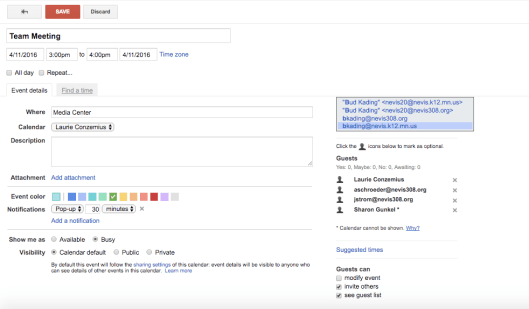
Screen Shot 2016-03-30 at 9.06.26 AMHowever, the real power of calendars comes when they are used to schedule meetings and activities. Begin by creating a meeting date. In this menu you can add attachments, such as agendas, that are shared with all members of the group. If these attachments are shared Google Docs they can be used during the meeting for note-taking. In this menu you can also set up reminders for the meeting, either through email or through pop-ups, scheduled days, hours, or minutes in advance. Each person you add to the meeting can indicate whether or not they will attend the meeting, too, so there shouldn’t be any surprises that day.
Google Calendars are also great tools to use for scheduling technology, classrooms, and more. The online access makes them easy for people to view, so communication is clear and easy. If you’re not using Google Calendars in your school you will certainly want to try them out today!

EDPuzzle

Today I created a video introduction to EdPuzzle.com, but I thought I would add a little more narrative to it here. If you want to watch the video you can find it at this link: http://viewpure.com/rPmEwo8CWtg?ref=bkmk

EdPuzzle is an amazing way to share videos with your audience, whether they are young or old. I love it because you can take any published video (yours or another) and clip off the beginning and end. This allows you to share a small portion of a video very easily. Imagine studying a piece of literature and being able to share with students the exact clip from the book’s movie so they can compare and contrast (without having to watch the entire film). Or imagine you teach science, or math, or social studies, and there is a great bit of video that introduces your next lesson. How wonderful to be able to share it this way.

A few great positives that I have to note:

  • EdPuzzle is FREE.
  • Students can’t skip ahead, if you’ve selected that option! This assures you that they’ve watched the entire video.
  • Students can’t open a new window without pausing the video.
  • You can insert questions that must be answered before moving on.
  • Questions you insert can be short answer, long answer or multiple choice – and the multiple choice questions are corrected for you.
  • EdPuzzle records the number of times each student watches any portion of the video. So – if they go back and watch again, you will know this.
  • You can assign EdPuzzle videos through Google Classroom.
  • You also receive an embed code and a URL, so you can assign EdPuzzle videos in a variety of ways: Schoology, email, posting on any webpage, etc.
  • You can edit a video you’ve created for a different class and include a different set of questions or comments, differentiating for each group.

I love, love, love this great tool, and have used it for staff development, for classes, for student projects, and much more. If you haven’t tried it, you must do so today!

Additional information for help and directions:

– Google Classroom integration: https://www.youtube.com/watch?v=OVQgt1HIClU
– YouTube integration: https://www.youtube.com/watch?v=Ul3eT4Bn8oY
– Student Project: https://www.youtube.com/watch?v=6c1r1mwUp-E
– Prevent Skipping: https://www.youtube.com/watch?v=ch03k-1zDD8

New Perspectives

Although I retired officially in June I’ve continued to work pretty much full-time in schools throughout the fall. I’ve attended conferences, put on training sessions, worked with students and teachers, struggled with tech issues, and continued working in much the same way I have every fall for the last 36 years. But just after Thanksgiving my husband and I flew to Italy for an amazing trip, and when we returned I worked only 3 1/2 days before breaking for Christmas….and I haven’t returned!

This stretch of days is the longest I’ve ever had without working – and without being in almost daily contact with teachers and students. Even in past summers the most I usually take totally off is a week or two – and I’ve been out of school for weeks! The most unbelievable thought is that I won’t be back for 7 more weeks. Seven weeks!!

I have never been a person who counted the days until retirement. I’m a bit of a workaholic actually, and I get a little uncomfortable if I don’t have a long list of things to accomplish each day. However, having time away gives a person a great new perspective.

The first thing I’ve noticed is that I’ve been really busy! How do people find time to work? Once you take it out of the daily schedule it’s pretty tough to fit it back in again.

As is probably typical I’ve been stockpiling “retirement lists”. For years I’ve said “I’ll do that when I’m retired.” One of my goals is to get busy with organizing my photos – not only from my recent trip to Italy, but for at least 15 years prior to that. Once I went digital I became like the family in the ads; my photos remained in the camera or on the computer…not visible to anyone at all. That needs to change.

My other goal is to get some real blogging done. I’d like to fill up this site with tech help, guided directions, tips, support, and more. Suddenly seven weeks doesn’t seem like very much time.

I also didn’t mention books. I have a pile of reading to catch up on. Heck, I even have a few Christmas cards left to write. I’ll let you know how I do. In the meantime, if you’re in Minnesota, keep warm. I’m retired. I’m going for a walk!

Flipping your read-aloud!

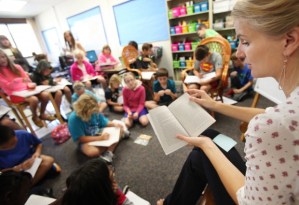
Sharing a wonderful read-aloud has always been one of my favorite teaching activities. Not only does it introduce the class to a great book, it also allows me to connect my students together in a shared experience. We can tie the theme of the book into other curricular areas during the course of our school day, but most importantly, it is a reading experie5254aa5c12f69.preview-620nce that children enjoy and one that helps with learning to read.

However, there are many times when a student is absent or out of the classroom and misses a portion of the story. In some situations there are students, who for whatever reason, miss the classroom read-aloud on a daily basis. This means some children miss out on more than just a good book – they miss out on the fullness of our classroom relationships.

Recently I worked with a second grade teacher to try to solve this problem in her classroom. Her thought was that if she could record herself reading the book each day, students would be able to listen to the story read aloud through a classroom iPad. Sounds easy, right? But her hope was that the students would be able to listen to the story on ANY classroom iPad and almost immediately after she read it. She also wanted this to be easy and seamless: not requiring uploads. In fact, wouldn’t it be wonderful if it would even work when a sub was taking her place for the day?

extra voiceAfter considering all of the recording apps I could find there seemed to be an issue with every one. One of the biggest issues when reading a chapter book aloud turned out to be space on the iPad itself. A typical chapter book may take hours to read – and that may take many GB on your device.

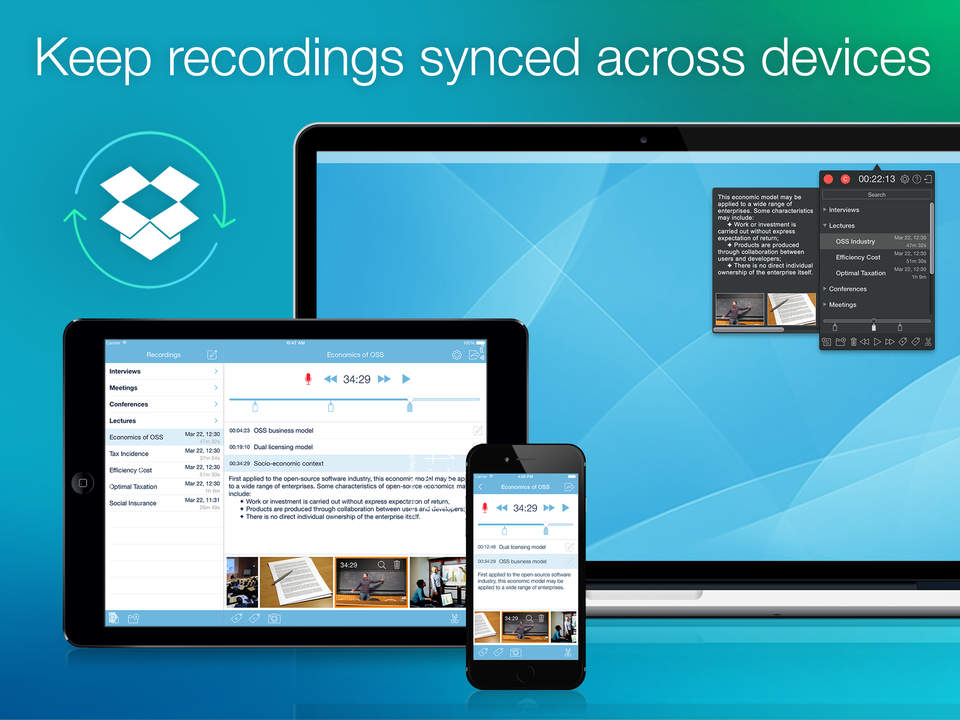
I ended up using an iPad app called eXtra Voice Recorder. Although not free, this app has the benefit of saving automatically to Dropbox. This was the piece that solved the rest of our issues. Since it saves automatically, all the teacher has to do is record daily and feel confident that the recording has been uploaded into Dropbox. Each day she reads the story as normal, including her introduction or review of prior chapters, and then titles the segment with the section of the book she read (sometimes using “part 1”, “part 2” and so on. She moves these files in a folder titled with the book title.

dropboxOn the other end we downloaded Dropbox to the classroom iPads and logged them in to an account we created that was just for storing these stories. Since we have email addresses that pair with our grade level Apple IDs it was easy to make an account in Dropbox with a school account. The app stays logged into this account even when the app is closed, so keeping the contents available to students is easy.

us-ipad-5-extra-voice-recorder-record-edit-take-notes-and-sync-with-dropbox-perfect-for-lectures-or-meetingsNow the students click in Dropbox, click on the book title folder, select the section of the book and press the play button. It is available on every iPad with Dropbox – and the teacher could even share the recordings with children who are unable to come to school or students who want to hear the story a second time, by sharing the Dropbox link.

This solution has added a new dimension to our classroom read-alouds! No longer are there students who missed the story the day before. They now get to join in and share the experience!

I highly recommend the eXtra Voice Recorder for your voice recording needs. It is an excellent option – especially with the ease of connecting to Dropbox. Give it a try today – or let me know if I can help you!

Google Chrome Extensions

Google Chrome Extensions

Chrome Extensions are Google Chrome Browser tools that extend the functionality of your browser and allow you to personalize your Internet experience. They can make things simple, more accessible, more visible, more compelling, and more convenient. There are dozens of potential benefits to you in your classroom. Clip a web page to Evernote with a single button push. Look up a reference. Model for students how to add a citation. Send a link to colleagues without opening another tab. Find a useful resource for a lesson? Scoop it. Tweet it. Pin It. Find a post you want to read? Don’t email it to yourself–use Pocket.

A Few of my Favorite Extensions:

Screen Shot 2015-10-21 at 11.39.27 AM    goo.gl (Google URL Shortner)

Shorten the page URL with this extension, which includes a QR code creator for the page.

Screen Shot 2015-10-21 at 11.40.30 AM   Clearly

Clear all the clutter like links, videos, animations and more from the article you are tyring to read with this extension.

Screen Shot 2015-10-21 at 12.19.29 PM   1-Click Timer

Easy access to a minute timer, with a very nice ring to it!

Screen Shot 2015-10-21 at 11.49.22 AM  Email This Page

Email the link, title, and a selection of text on the web page you’re currently on with the click of this extension.

Screen Shot 2015-10-21 at 12.02.02 PM  ScreenLeap for GMail

Start sharing your screen with one click without leaving Gmail. Using just your URL you can share your screen with others in real time!

Screen Shot 2015-10-21 at 12.07.46 PM  Screencastify

Screencastify is a simple video screen capture software for Chrome. Incompatible? Go here http://www.screencastify.com/launch

Screen Shot 2015-10-21 at 12.14.01 PM  Copy All URL’s

Copies all opened tab URL’s to your clipboard. Easily paste into a doc or sheet for later access.  

Screen Shot 2015-10-21 at 12.11.06 PM  Pin to Pinterest

This extension allows you to pin the page you’re on to any of your Pinterest boards.

Screen Shot 2015-10-21 at 12.15.32 PM    Add to Google Classroom

The quickest and easiest way to get a document posted into Google Classroom!

Screen Shot 2015-10-21 at 11.39.27 AM  Cite this for me: Web Citer

When selected, creates a citation in the format of your choice for the page you are viewing.

Settings:

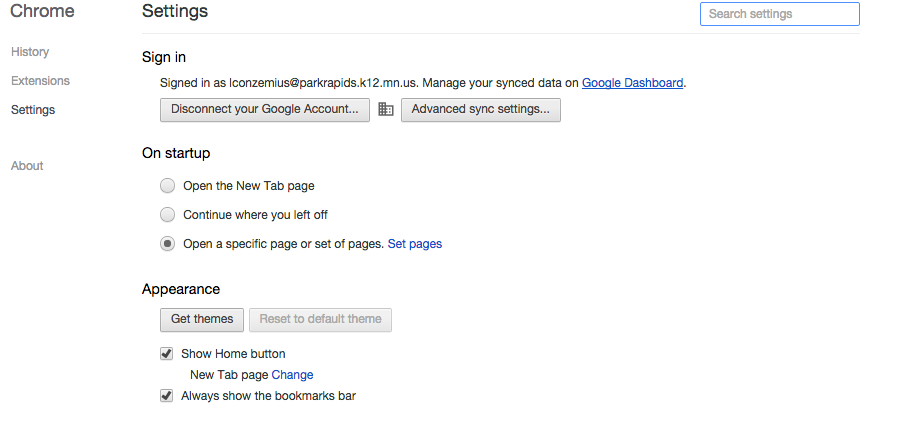
Select the three lines to the right of your URL bar and select “settings” in order to show your bookmark bar. Check the box in front of “Always show the bookmark bar.”

Screen Shot 2015-10-25 at 4.48.39 PM

Uninstall or Disable Extensions:

Go to chrome://extensions/  OR  Settings > Extensions > Go to the Extension you wish to delete >

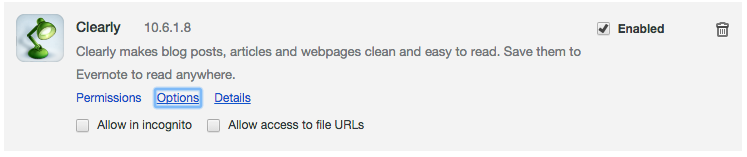
-Uncheck Enable to disable the lab but not delete it (see below)

-Click the ‘Trash’ icon to delete the extensions (see below)

Reorganize Your Extensions

To put your extensions in the order you wish them to be, drag and drop them anywhere in the navigation bar.

Access Options

Some extensions have customizable options. To set up options:

Settings > Extensions > Go to the Extensions you wish to customize

If there is an option for customizing the extension you will see the ‘Options’ clickable link by the extensions (see example below)

Screen Shot 2015-10-25 at 5.10.07 PM