October 29, 2018 – Flipgrid

flipgridcardAs educators we really want our students to speak and listen, to share and comment, and to find the confidence to use their own voice, but so often in classrooms this is difficult. There’s not enough time. There’s not a good platform for sharing. There aren’t enough devices to go around. I can think of a million reasons why amplifying my students’ voices just won’t work…but when you try Flipgrid I think you’ll see just what amazing things can be done when we do allow our students to talk.

Last week I was lucky enough to hear Dr. Charlie Miller, founder and chief design officer at Flipgrid. I was blown away! I had used Flipgrid once or twice over the last few years, and I was impressed with what it could do, but I didn’t have the vision to see what it could do in a classroom. Flipgrid is a discussion platform where teachers can post discussion topics and students share their answers. Its flexibility is amazing!

With your FREE Flipgrid account you create a grid for your classroom. Name your grid and set the privacy settings. Only those with the grid url can access it. Then add the topics – the questions and themes you want your students to discuss. You can start with just one…but then can add unlimited discussion topics throughout the school year.

A big positive of Flipgrid is that students do not need to create an account. They simply click on the grid url (or scan it from a qr code). There’s a free flipgrid app for all devices you can use, or students can use any computer. Then the magic happens! Each discussion is on its own url, so viewing is only allowed for those students with the link.

Using Flipgrid isn’t about recording videos though. It’s about learning! Learning that is social, personal, can happen anywhere and anytime. It’s about making connections, exploring deeply, and promoting the idea that everyone is a learner and everyone is a teacher. Check out the free complete Flipgrid eBook vol3.  It includes everything you need to know to set up your account, create your first board, and get your students talking!

Another great Flipgrid resource is the Flipgrid Tips post on the Flipgrid blog, posted at: blog.flipgrid.com/news/gridtips.

Curious about how Flipgrid can be used in your classroom? Here are a few examples from different grade levels:

High School

Act it out:

Take on the persona of a historical figure you have been studying. Offer up comments on what that person would say if he/she were alive today. Or tell an event in history from your person’s point of view.

Middle School

Show what you know:

It can be terrifying for middle school students to get up in front of class and share what they know. With Flipgrid, rather than creating the video, students can choose to upload a video they have recorded with Screencastify! Or they can simply use the Flipgrid to explain how to find the area in a triangle, or to pose their solution to any problem.

Elementary School

World Read-Aloud Day:

Sean Forde, a friend of mine who teaches in Italy, created a World Read Aloud Grid where people around the world read a page of a book to create a collaborative masterpiece. Here is Sean’s first World Read Aloud Flipgrid, reading Oh, The Places You’ll Go. 🌍

Through these projects, Sean’s students were able to see the power of connection, experience other languages and cultures, and see the world through a different lens. (I helped with the reading of Ada Twist, Scientist – flipgrid.com/fdfebf)

Any Age:

The 30-second Book Talk:

Have students write, and then read, a 30 second “book trailer” for a book they recommend to others. Check out this sample: https://flipgrid.com/c5fa6c

Would you rather?

Check out http://wouldyourathermath.com. Select a question and have your students record their answer, justifying their answer with mathematics.

Looking for another way to use Flipgrid in your classroom? Let me know – and let’s work on it together!
October 17 – Edpuzzle

In almost every lesson I ever taught, it seemed like there were students who hadn’t quite caught up to the rest of the class. Maybe they were sick that day, or maybe they hadn’t mastered the previous skill, or perhaps they were still learning the vocabulary (or the language) and it just took a little longer for them to listen and then comprehend my speech. One thing we find in education, in every grade level and in every subject area, is that some students just need more time. But how do we offer that extra teaching time in an already overwhelming day? Who has that kind of time?

In comes Edpuzzle. Edpuzzle is a huge clearinghouse of educational videos that include an interactive step – a point where the video stops and students have to respond, record an answer, take a quiz, or in some way prove their understanding. Edpuzzle is FREE. Edpuzzle’s content comes from Khan Academy, National Geographic, Numberphile, Crash Course, YouTube, and more, as well as from any video you record yourself. Plus, videos can be shared between teachers in the same school, so your team can produce instructional videos that can benefit more than just your class.

As students watch a video on Edpuzzle they are restricted from “fast-forwarding”. In addition, if they open a new tab, the video pauses. And, here’s the big one, you can view exactly how much time your students spent watching each video, and can tell if they watched certain sections more than once, and can see how they answered every question or quiz. Imagine having a student tell you that they watch the video you assigned as homework, and then being able to pull up the report and show that they viewed the first thirty seconds and then stopped. And your videos can easily be shared on websites, through email, in Google Classroom, with a QR Code, or any other way you get your work out to your students.

History and Social Studies teachers often want to add videos and music to enhance lessons and make them more enjoyable for the students. This makes history not just facts to memorize, but human events and interactions to understand and appreciate.

In traditional classrooms, the more vocal students get most of the teacher’s attention. These students ask questions, answer questions, and set the pace of the lesson, even if this pace is too fast (or too slow) for the quieter students. While some students answer all the questions, you rarely hear from others.

Edpuzzle tracks every student’s progress during each lesson. This allows you to “flip” your class by creating your own videos to cover simple concepts and walk through sample problems. By using Edpuzzle you can easily insert questions and comments to check your students’ understanding, as well as get feedback from students when they don’t understand something.

As much as we love it when students follow the lesson and are confident in the subject, some students need more time to grasp a concept. As a teacher, it can be difficult to move on to the next topic when some students are still stuck. Edpuzzle empowers students to keep up with class even if they learn at a slower pace.

The collection of videos available ranges from special ed, to ELL, to all school subjects and grade levels, and from preschool through high school (and beyond). As an Edpuzzle teacher you have access to all of these videos, plus the ability to edit the questioning throughout the video in any way you wish.

I can think of many incredible way teachers may wish to use Edpuzzle:

  • To reinforce and reteach concepts
  • To share a story, with comprehension questions throughout
  • To show a science video that provides a greater understanding through illustration
  • To provide review opportunities
  • To introduce a new topic
  • To share with families so they understand what you’re teaching
  • To give additional resources you don’t have time to cover in class
  • And so much more!

An additional tool that may be helpful in checking out Edpuzzle is this great blog post by Vicki Davis. It provides a step-by-step guide for using Edpuzzle in your classroom: http://www.coolcatteacher.com/Edpuzzle-review/

When you create your account be sure to use your school email address, and connect to Park Rapids Schools so you have access to all of the content available. Please let me know how I can help you utilize this excellent resource.


Oct 11, 2018 – I need a doc cam!

A document camera is an incredibly valuable tool in the classroom! It allows you to display images and objects to your entire class, and to take pictures of those images for later use. Doc cams are especially helpful for allowing students to view small objects – anything from that fragile bird’s nest a child brings in to show the class to the mold growing on the bread in your science station. Document cameras also allow you to project examples of your students’ quality work, highlight text in front of the class, and so much more.

However, most classroom teachers don’t have access to a document camera. Donor’s Choose, Itasca Mantrap, and our own Park Rapids Education & Activities Foundation are wonderful ways to get a doc cam for your classroom, but in the meantime, most of you have a tool that works similarly to a document camera and is readily available to you: your old school-issued iPad!

Our original iPads have definitely seen their better days. Most of them are iPad 2s, and are at least 4-5 years old. For many of you I’m guessing that this old tool has been set aside and relegated to a few games of Candy Crush, or even put in a drawer and forgotten. But your old iPad 2 still has a good functioning video camera that works extremely well as a doc cam!

If your iPad is filled with old apps you no longer use, a good start is to delete those extra apps. The next step is to make sure that you can connect your iPad to Airserver on your computer that projects to your SmartBoard. In order to do this you have to either have a laptop, or you need to have a wireless usb dongle on your computer. Turn on Airserver on your computer, and connect your iPad (or iPhone) using the following directions:

If you are using iOS 8 or higher, follow these steps:

  • Connect your iOS device and your computer running AirServer to the same Wi-Fi network.
  • On your iOS device, swipe up from the bottom of your screen to access the Control Center.
  • Tap the AirPlay (or Screen Mirroring) icon. You should now see a list of AirPlay enabled receivers available on your network.
  • Tap the name of the AirPlay receiver you wish to AirPlay to. This would be the name of the computer running AirServer.
  • To begin mirroring, toggle the mirroring switch.

If you are using iOS 7, follow these steps:

  • Connect your iOS device and your computer running AirServer to the same Wi-Fi network.
  • On your iOS device, swipe up from the bottom of your screen to access the Control Center.
  • Tap the AirPlay icon. You should now see a list of AirPlay enabled receivers available on your network.
  • Tap the name of the AirPlay receiver you wish to AirPlay to. This would be the name of the computer running AirServer.
  • To begin mirroring, toggle the mirroring switch.

Now you can open the camera app on your iPad (or iPhone) and hold it above the object or page you’d like to share. The trick is finding a great stand at a great (or no) price. You can buy iPad doc camera stands, but if you look around you’ll probably find exactly what you need in your classroom or around the house/apartment.

I’ve seen people use wire shelves, cardboard boxes, recipe stands, and all types of creative stands, but here are a few requirements:

  • The stand must be sturdy enough to hold the iPad.
  • It has to have openings at the top to safely set your iPad on while allowing the camera to peer through.
  • It lifts the iPad up from the “stage” below so you can fit objects of various sizes underneath.
  • There is a clear working area underneath to fit the demonstrator’s hands. This is especially important when annotating text or “modeling” for students.

In addition, there may be people in the district who have an older model document camera that they no longer use. If you have an doc cam that you would like to give up to another teacher, please let me know. I know of several people who would be happy to take it off your hands, even just to try it for a few days.

If you’re ready to try using your iPad as a doc cam, but want a little support, let me know. Or – stop in the Century library any time on Wednesday morning during church school, or after 3:15 on Wednesday, Oct 17th. Bring your iPad and we’ll talk all about how you can get yours running as a flexible document camera.


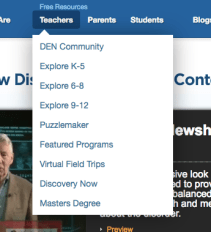
Don’t miss out on the continuous updates and new information coming out of Discovery Education – much of it free for educators! Check out the new content here: http://www.discoveryeducation.com/New-Content/ And use the teacher’s drop-down menu for additional free content.

Their virtual field trips, Puzzlemaker, and curricular resources for every grade level make them an important resource to always have on hand – especially for science and


Screen Shot 2018-10-11 at 10.20.31 AM

social studies teachers. For more information on how you can use Discovery Education in your classroom, shoot me an email.

Oct 1, 2018 Symbaloo

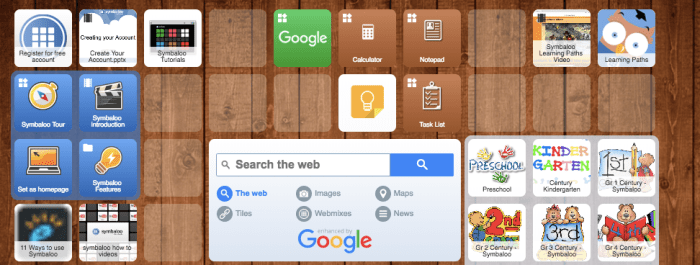
If you’re looking for an easy way to organize and share resources, Symbaloo is your answer! Visually, Symbaloo makes it easy for students to locate the websites quickly, and Symbaloo offers the flexibility to arrange those websites in any order you wish. You can update your Symbaloo on the fly, knowing that your most recent updates will be readily available to your students. And once you’ve created a Symbaloo webmix it’s easy to post it on your website or create a link or QR code directly to it.

I’ve used Symbaloo to create small webmixes for a specific class project, posting the directions in one box, a video explanation or example in another, weblinks in additional spots, all color-coded so that students know where to start, and where to go from there. And whether your students are in preschool or high school, or anywhere in between, Symbaloo is the perfect fit!

Symbaloo webmix

The best way for you to understand Symbaloo is to experience it, so take a look at my “How to Symbaloo” webmix: https://www.symbaloo.com/mix/howtosymbaloo7. This site has tutorials, sample webmix links, videos and more, that will have you making your own webmixes in minutes! Want to try one with your class? Let me know, and we can create your own webmix with all the links that you want to share with your students on one page!

And, did I mention that Symbaloo is FREE? You’ll want to check it out today!

Symbaloo is the tool I used to create links for each grade level, and the high school PR Digital Library.  All of these are linked on the Symbaloo above, as well as on our school library homepages, so you can check them out now if you haven’t been using them.

An additional part of Symbaloo, and the real power of it, in my mind, comes with Symbaloo Learning Paths. https://learningpaths.symbaloo.com/

With Learning Paths you can create digital lessons for your students, specifying the order they must complete activities you’ve handpicked. You can put in options, such as selecting different learning activities, and you can add quizzes, games, videos, and much more. Learning Paths are a completely flexible, exciting way to share your curriculum with your students! They make terrific center activities or homework activities, as the pathway is determined by the teacher. And Symbaloo Learning Paths comes with a Marketplace of activities, so you don’t have to start from scratch. Teaching a new lesson? Search for similar lessons for your grade level in the Marketplace to find some great resources to share with your students…already in the Learning Paths format, and ready for you to adjust for your students’ needs!

Symbaloo Learning Paths

Like Symbaloo webmixes, Symbaloo Learning paths are free. Sign up with your school email address (or choose to log in with your Google account) and start creating today!! And, as always, please contact me if I can help you set these up for your class.